Configure schedules
A schedule defines due times and answer rules. A nonempty set of schedules on an assignment overrides the questionnaire's default schedules.
Requires: Write access to the questionnaire for defaults, or to the assignment for individual schedules.
Set the normal schedule
- Open the questionnaire's Settings.
- Under Schedule, select Add Schedule, or expand an existing schedule.
- For a daily clock time, leave Interval at zero, select the weekdays, and enter Time of day, for example
09:00. - Set the start/end and grace period as required. Check the local-time option.
- Review Schedule Summary and select the questionnaire's Save.
Use Fixed Dates for a specific one-time appointment: add one date/time and leave recurrence and additional initial/final occurrences off. Fixed dates are additional occurrences; they do not replace a recurrence already configured.
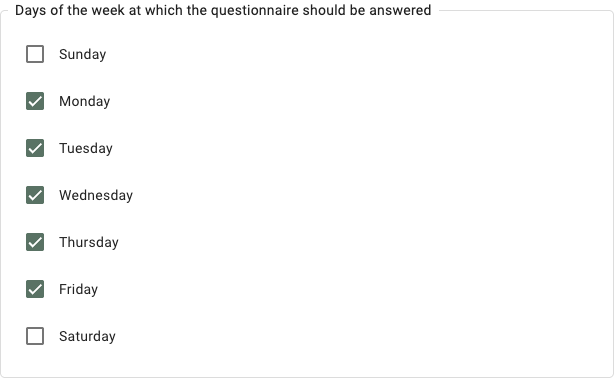
English UI, synthetic weekday selection. Time and interval are configured separately as described above.
Change the schedule for one person
Open the person's existing assignment, select Edit, then Edit Schedule. Save the schedule dialog and the assignment. Reset to Default Schedules restores inheritance.
Changing questionnaire defaults affects assignments still inheriting those defaults. Custom schedules remain separate.
Availability and repetition
- Start Date and Start after anchor recurrence. Recurring dates start no earlier than the assignment date; an absent schedule start uses that date.
- Interval creates a repeated interval. For a daily clock time, use weekdays/time as above. Multiple comma-separated clock times create multiple daily occurrences.
- Number of intakes limits generated recurring occurrences; zero leaves them unlimited. An end date bounds recurrence.
- Grace period extends both before and after a due time. At 09:00 with one hour of grace, the due window is approximately 08:00–10:00.
- Allow answering retroactive allows late completion after the window. Answers allowed any time permits answers outside scheduled windows.
- Answer immediately supplies an initial occurrence when recurrence produces none. Answer finally adds an occurrence at the end date. Fixed dates and final occurrences can add to the recurrence limit.
- Don't disturb removes recurring due times inside configured periods. Fixed dates are added separately and ignore the local-time setting.
- Each assignment and each schedule can contribute occurrences. Do not assume overlapping schedules or duplicate assignments are merged.
Reminders
Select the schedule's notification channels and check the person's enabled channels/device connection. A due time and a delivered reminder are different things.