Upload a recording
Upload an audio or video file, then open the prepared recording in the editor.
Requires: A Cue login with recording creation available and a recording you are authorized to upload. Transcription must be enabled to generate text.
- From the home screen, open New recording and select Upload recording.
- Choose Upload File if an input-mode selector appears, then Pick a file.
- Set Auto-delete after according to your organization's retention requirements.
- If transcription is enabled, choose Number of speakers or keep Auto-detect.
- Keep the initial processing options unless you need a specific language. Show advanced options exposes language and model choices.
- Select Start Transcription, or Save Recording if transcription is disabled.
- Wait for upload and processing to finish, then open the recording.
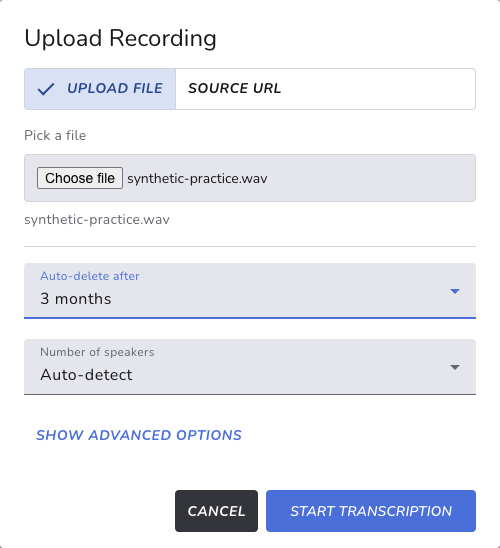
Synthetic upload example. The three-month period is illustrative; use your organization’s retention policy.
For a first run, use a short synthetic conversation. Review its text against the recording before sharing or exporting it.
The recording can remain usable for playback and supervision when transcription is disabled. Text-dependent functions need a transcript.
If processing fails
Read the error on the recording card. Check that upload finished and the selected file contains playable media. If processing remains pending or repeatedly fails, send the administrator the recording identifier, time and visible error. Avoid uploading repeated copies before checking the first attempt.