Review and edit a session
Open a recording to review synchronized media and transcript text.
Requires: Read access to the recording; write access to change its title or transcript.
- Find the recording on the home screen and open it.
- Play the recording and select the transcript passage you want to review.
- Correct the text or speaker information where needed.
- Select Save or use Ctrl+S / Cmd+S.
- Check the saved indicator before leaving the editor.
Use the panel controls to show or hide transcript, playback, Supervision and Analytics panels where available.
Choose Actions → Edit details to change the title, labels or deletion time. To organize only your own list, use Pin or Archive on the recording card; these flags do not change other users' lists.
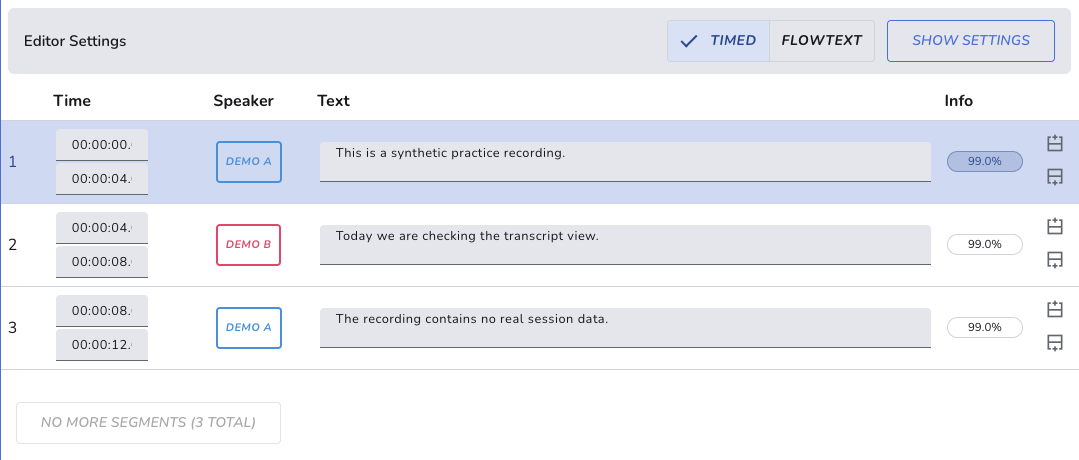
Synthetic transcript in the timed view, with the text panel widened using the divider.
If text or playback is missing
Check whether processing is still running or transcription is disabled for the instance. A recording saved without transcription can have playback without text.
For a missing recording, clear search/group filters, check archived recordings and confirm your access with its owner. If playback fails, record the visible error and the time; do not assume the recording was deleted just because playback failed.