Create an automation
An automation runs actions when its trigger occurs and all its conditions match.
Requires: Access to Automations, write access to edit an existing automation, and access needed for its target resources. Dry Run availability depends on permissions and the selected conditions.
Assign a questionnaire when creating a person
Create the questionnaire and its default schedule first.
- Open Automations and select the plus button.
- Enter a name such as
Assign daily check-in on creationand a short description. - Add Person created as a condition.
- Add the person-tag condition and enter
daily-checkin. - Add the action that assigns a questionnaire and select
Daily check-in. - Save the automation.
- Create a synthetic person using a preset that supplies
daily-checkin. - Verify the person's assignment and Executed automations.
All conditions must match. The creation event supplies the trigger; the tag condition restricts who matches. Adding a tag to an existing person alone does not supply this creation event.
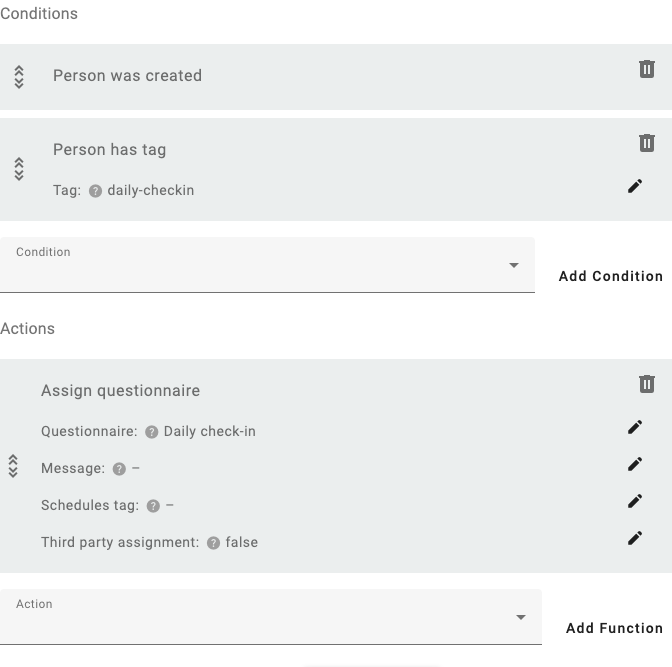
The creation condition supplies the trigger; the tag condition restricts the match. The action uses the questionnaire’s default schedule.
Other patterns
Choose questionnaires by tag: use the action that assigns questionnaires carrying a tag when a curated set should be assigned together. Distinguish the person's eligibility tag from the questionnaires' selection tag.
Process existing tagged people: use Scheduled execution plus the tag condition. Add a maximum-executions condition last when the action should run only once per person. Scheduled evaluation is periodic, not immediate; check your instance's operation with an administrator.
React to a submitted result: use the questionnaire-calculation condition to compare a saved calculation, then add the required action. Verify the source result before enabling the workflow.
Check execution
Use Dry Run when offered to inspect matches without applying the actions. In Executed automations, inspect errors and the target person. Actions run in order; a failure stops later actions and does not promise rollback of earlier changes.
The maximum-executions condition counts evaluation attempts when reached, before actions succeed. Put it after other conditions and do not interpret it as a count of successful assignments.