Create a questionnaire
A questionnaire defines the questions and settings used to collect answers.
Requires: A professional login with questionnaire creation available; write access to edit the questionnaire. Your instance can restrict questionnaire editing.
- Open Questionnaires and select Create Questionnaire.
- Enter a Name. Add Instructions and organizational Tags if needed.
- Select Create.
- Open Questions and select the plus button.
- Enter the question text and choose its answer type. Configure the options required by that type.
- Select Save for the question. Add further questions and drag them into the intended order.
- Return to the questionnaire and select Save after changing its settings.
- Select Test to check wording, required answers, options and order.
For a practice questionnaire, name it Daily check-in and add three Number questions: “Energy today”, “Concentration today” and “Rest today”. Use a 0–10 scale in the wording. This is a synthetic configuration exercise, not a validated assessment.
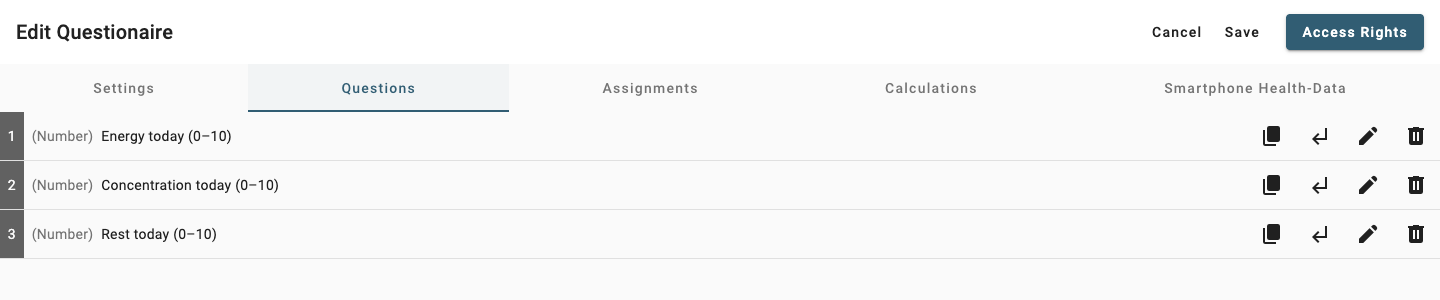
English UI, synthetic questions in the Questions tab.
Before assigning
Configure the default schedule. Add a calculation if the answers should produce a score for a dashboard.
A preview checks the answering workflow. To verify stored answers and calculated results, submit a separate synthetic person's assigned questionnaire and inspect the result.
If editing controls are disabled, check both the questionnaire's access rights and your instance's editing restrictions.